

In today’s digital world, streaming has become part of daily life. Whether you love movies, sports, news, or international channels, IPTV4K offers a powerful way to enjoy ultra-high-definition entertainment. But here’s the truth: even the best IPTV service won’t perform well without the right setup.
If you’ve ever faced buffering, lag, or blurry 4K quality, don’t worry. This guide explains how 5 simple steps boost your streaming with IPTV4K. Each step is practical, easy to follow, and designed to improve your viewing experience immediately.
Let’s dive in.
Table of Contents
What Is IPTV4K?
lPTV4K refers to Internet Protocol Television that streams content in 4K Ultra HD resolution. Unlike traditional cable or satellite TV, IPTV delivers content through your internet connection.

Key Features of IPTV4K
- Ultra HD 4K resolution (3840 × 2160 pixels)
- On-demand movies and TV shows
- Live sports streaming
- Global channel access
- Multi-device compatibility
4K streaming provides four times the resolution of Full HD. That means sharper images, better colors, and more detailed visuals. However, high resolution also requires better bandwidth and optimized hardware.
Why Streaming Quality Matters
Streaming quality affects:
- Picture clarity
- Sound performance
- Buffering frequency
- Overall user satisfaction
According to industry reports, viewers abandon streams within 90 seconds if buffering continues. That’s why optimizing IPTV4K is not optional — it’s essential.
Step 1: Upgrade Your Internet Connection for IPTV4K
Your internet speed is the foundation of smooth IPTV4K streaming.
Recommended Internet Speeds
| Streaming Quality | Minimum Speed | Recommended Speed |
|---|---|---|
| HD (1080p) | 10 Mbps | 20 Mbps |
| 4K UHD | 25 Mbps | 50+ Mbps |
Why Speed Matters
4K video consumes more data. If your connection is too slow:
- Video will buffer
- Resolution will drop
- Audio may lag
Tips to Improve Internet Performance
- Use fiber broadband if available
- Avoid shared heavy downloads during streaming
- Upgrade to higher Mbps plans
- Use Ethernet instead of Wi-Fi
Pro Tip: Always test your speed using reliable tools before blaming IPTV4K performance.
Step 2: Use the Right IPTV4K Streaming Device
Not all devices handle IPTV4K equally.

Best Device Options
- Android TV boxes
- Smart TVs with 4K support
- Streaming sticks (high-performance models)
- Dedicated IPTV receivers
Important Hardware Requirements
- 4K-compatible display
- Minimum 2GB RAM
- Strong processor
- Updated operating system
Low-end devices struggle to decode 4K streams smoothly. Even with fast internet, weak hardware causes freezing and crashes.
Device Comparison Table
| Device Type | Performance | Price Range | Best For |
|---|---|---|---|
| Smart TV | High | Medium-High | Simple setups |
| Android Box | Very High | Medium | Advanced users |
| Budget Stick | Medium | Low | Casual viewing |
Investing in quality hardware directly boosts IPTV4K performance.
Step 3: Optimize Router and Wi-Fi Settings
Your router plays a bigger role than most people think.
Why Router Setup Matters
4K streaming requires stable bandwidth. Weak Wi-Fi signals cause:
- Packet loss
- Lag spikes
- Quality drops
How to Improve Router Performance
- Place router in central location
- Use 5GHz Wi-Fi band
- Upgrade to dual-band or Wi-Fi 6 router
- Reduce connected devices during streaming
- Restart router weekly
Wired vs Wireless
| Connection Type | Stability | Speed | Recommended for IPTV4K |
|---|---|---|---|
| Ethernet | Very High | Fast | Yes |
| 5GHz Wi-Fi | High | Fast | Yes |
| 2.4GHz Wi-Fi | Medium | Slower | Not ideal |
For best results, use a wired Ethernet connection.
Step 4: Adjust IPTV4K App Settings for Best Results
Many users forget to optimize their IPTV app settings.
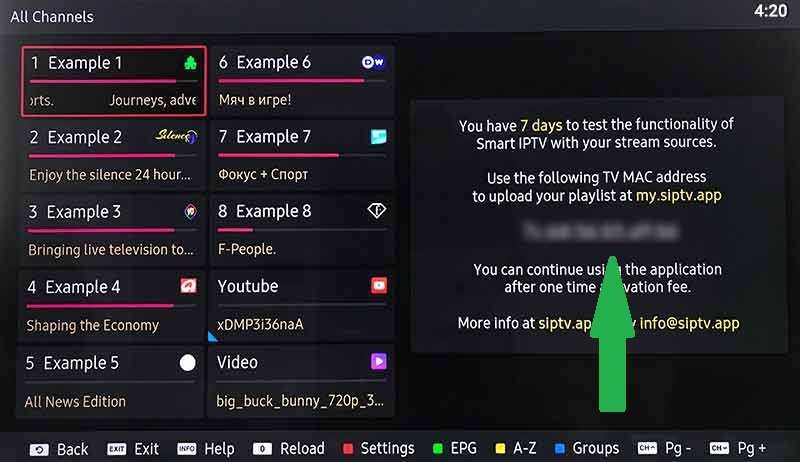
Recommended IPTV4K App Settings
- Enable hardware acceleration
- Adjust buffer size
- Select auto frame rate
- Use stable codec settings
Buffer Size Adjustment
If buffering happens often, increase buffer size slightly. But don’t set it too high, or loading time increases.
Video Decoder Settings
Hardware decoding reduces processor load and improves performance. Always enable it if your device supports it.
Step 5: Maintain and Update Your IPTV4K System
Regular maintenance prevents most streaming issues.
What to Update Regularly
- IPTV4K app
- Device firmware
- Router firmware
- Security patches
Why Updates Matter
Updates fix:
- Bugs
- Security issues
- Compatibility problems
- Performance limitations
Ignoring updates leads to crashes and reduced streaming quality.
Common Streaming Mistakes to Avoid
Even with lPTV4K, users often make simple mistakes:
- Using outdated apps
- Running background apps
- Ignoring router placement
- Using VPNs that slow speed
- Overloading network
Avoiding these mistakes alone can dramatically improve your streaming.
Real Case Study: How 5 Simple Changes Boosted IPTV4K Performance
Case: John’s Home Setup
Problem:
- Frequent buffering
- Blurry 4K
- Audio delays
Solution:
- Upgraded internet from 20 Mbps to 100 Mbps
- Switched to Ethernet cable
- Bought mid-range Android box
- Enabled hardware decoding
- Updated router firmware
Result:
- Zero buffering
- Crystal-clear 4K
- Stable sports streaming
John said:
“I thought IPTV4K was the problem. Turns out, my setup was the issue.”
This shows how powerful small adjustments can be.
Frequently Asked Questions
1. What internet speed is best for IPTV4K?
At least 25 Mbps for 4K, but 50+ Mbps is recommended for smooth performance.
2. Does IPTV4K work on all Smart TVs?
It works on most modern 4K Smart TVs, but performance depends on hardware quality.
3. Is Ethernet better than Wi-Fi for IPTV4K?
Yes. Ethernet provides more stable and faster connections.
4. Why does IPTV4K buffer even with fast internet?
Possible reasons include weak device hardware, router issues, or incorrect app settings.
5. Do updates really improve streaming?
Yes. Updates fix bugs and improve compatibility.
6. Can too many devices slow IPTV4K?
Yes. Multiple connected devices divide bandwidth and reduce streaming quality.
Final Thoughts on IPTV4K Optimization
Improving IPTV4K performance doesn’t require technical expertise. By following these 5 simple steps, you can dramatically boost your streaming quality.
Let’s recap:
- Upgrade your internet
- Use powerful hardware
- Optimize router setup
- Adjust IPTV app settings
- Keep everything updated
Streaming in 4K should feel smooth, sharp, and enjoyable — not frustrating.
Take action today. Small improvements make a big difference.